Translate in your browser
Drop a volume on serifu.net, choose the pages and the translation model, and read it translated and lettered. Kept in your browser, exported as CBZ, PDF or images.
The translator is the first thing on serifu.net. Nothing to install: the pages are read and translated on Serifu's servers and lettered in your browser.
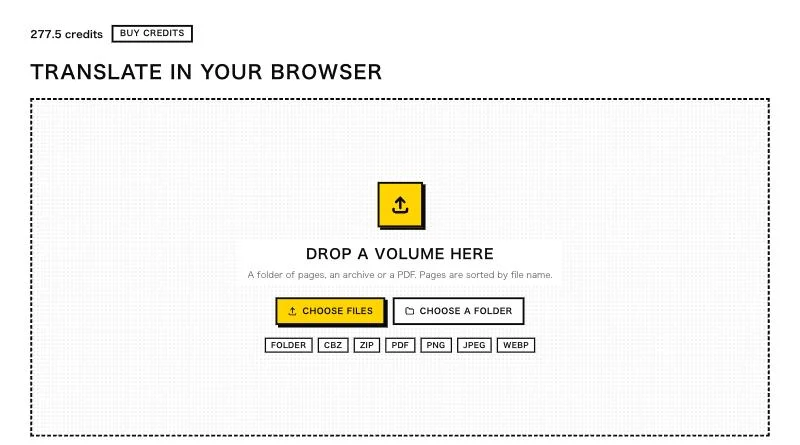
1. Drop a volume
Drop a folder of pages, a CBZ, ZIP or PDF, or PNG, JPEG or WebP images, or click Choose files or Choose a folder. Pages are sorted by file name; check the Page order and the Reading direction (right to left for manga, left to right for most comics).
2. Choose what to translate
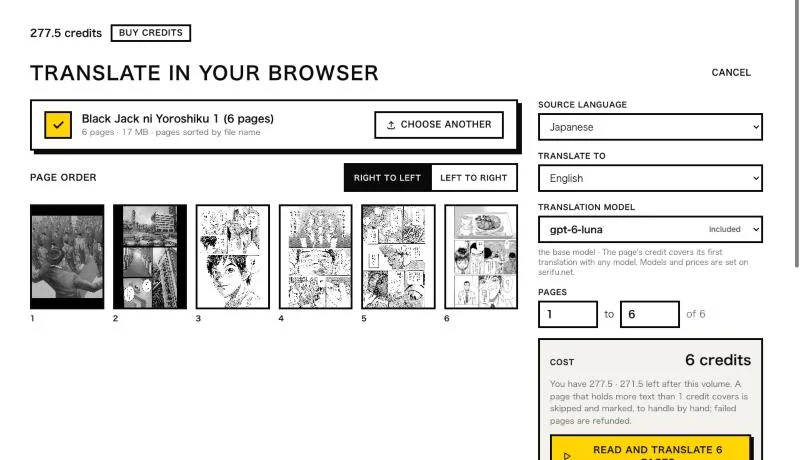
- Source language and Translate to.
- Translation model: the page's credit covers its first translation with any model. Models and prices are set on serifu.net.
- Pages X to Y: a long volume can be translated in parts. Pages translated here carry their context to the next pages you translate.
Cost shows the price and your balance after it before anything starts: 1 credit a page. If you are not signed in, you sign in first; your pages stay in the browser meanwhile.
3. While it translates
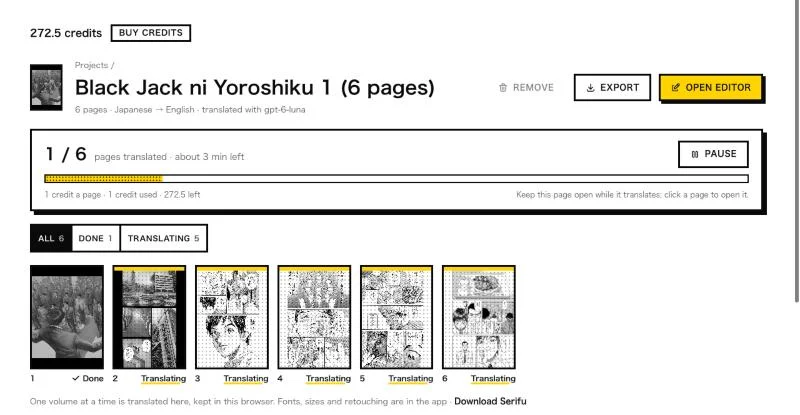
Keep the tab open: translating stops if you leave the page. Each page is kept in this browser as soon as it is done, so you can open any finished page and read it while the rest go on.
A tab closed halfway, or a run that ran out of credits, is not lost: open the volume again from Projects and click Resume. It carries on from the pages done; pages not run were not charged.
4. Read and fix
Open a page. Original / Translated flips between the source page and your translation; the arrows or the page strip move between pages.
Click a line on the page, or in the list of lines, to select it.
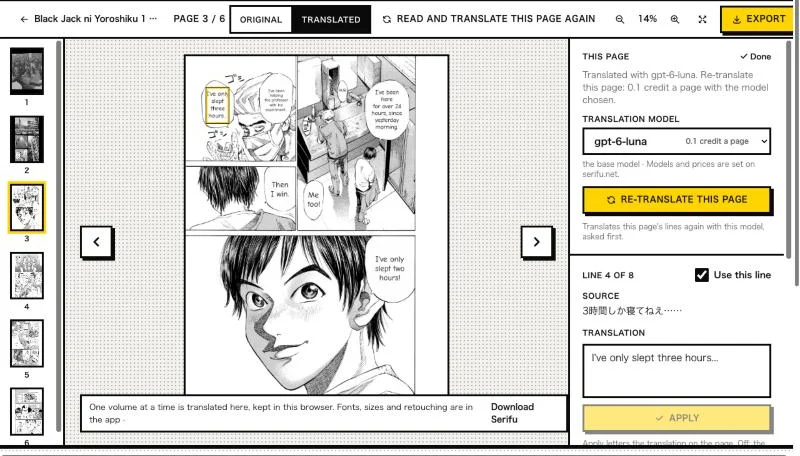
- Use this line: off shows the original lettering there; All on and All off do the whole page.
- Translation: type a better one and click Apply. The page is lettered again in your browser, at no cost. The first time, the browser downloads the lettering files once and keeps them.
- Re-translate this page or Re-translate the volume with another translation model: the model's price a page, asked first. Every line is translated again, the ones you edited too.
- Read and translate this page again (in the toolbar): the page is read from its image once more and translated, 1 credit.
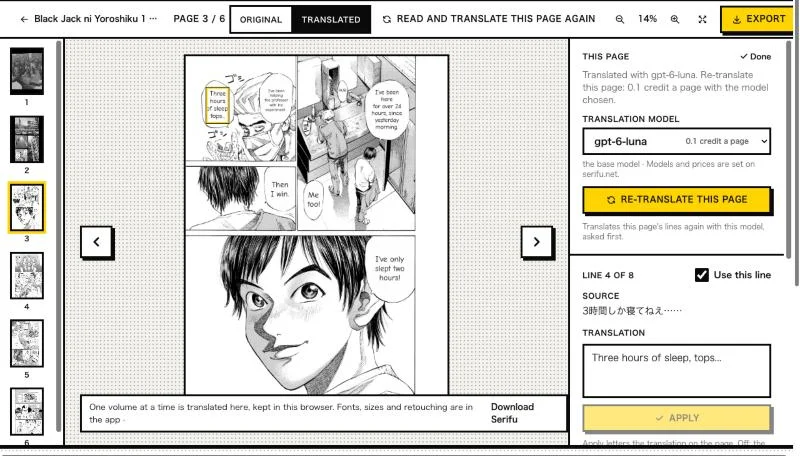
Fonts, sizes and retouching are in the app.
5. Export
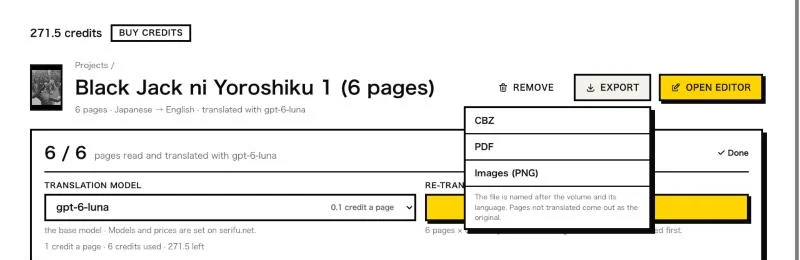
Export on the volume's page saves it as CBZ, PDF or Images (PNG); in the page view, Export saves just that page as PNG or PDF. The file is named after the volume and its language; pages not translated come out as the original.
Your projects
Every volume you translate here is a project on the Projects shelf, kept in this browser until you delete it. Continue opens the last one; a card's menu renames or deletes it, as does Remove on the volume's page. Deleting removes its pages and translations from this browser; credits already used are not returned.
The shelf belongs to this browser: another browser or computer has its own. To keep a volume, export it.
Which browsers work
Pages are lettered with WebGPU: Chrome and Edge, and Safari on recent Macs, iPhones and iPads. In a browser without it, Serifu says so and points to the app.