The editor
Check every page of a translated volume in the app, change any line, turn lines off, re-translate a line or a page, and touch up the art.
The editor has the page strip on the left, the page in the middle with its tools, and on the right the page's card, the selected line and every line on the page (Lines), and the project (Project). Original / Translated at the top flips between the source page and your translation.
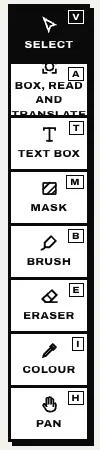
Tools
The tools float at the top left of the page. Hover one to see what it does and its key; keys can be changed in Settings › Shortcuts. Moving to another page, or Esc, goes back to Select.
- Select (V): click a line on the page or in the list.
- Box, read and translate (A): box text Serifu missed. See Box, read and translate.
- Text box (T): type your own text on the page: click for a line, drag for a box. Free, nothing is sent; it is marked Typed.
- Mask (M): box what should not be translated. See Masks.
- Brush (B), Eraser (E) and Colour (I): touch up the page. See Touch up.
- Pan (H): move around the page.
Undo and Redo are next to the page number, Fit window next to the zoom.
Change a line
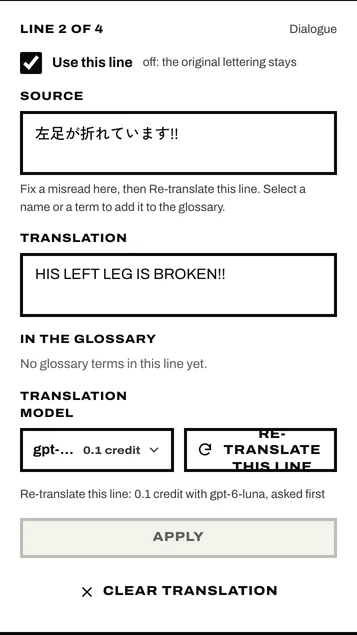
Select a line. Its Source and Translation appear on the right.
- Translation: type your own and click Apply. Free.
- Re-translate this line: a new translation with the page as context, with the Translation model you pick. Its price is said beside it, and Serifu asks first.
- Source: if Serifu misread the original, correct it here, then Re-translate this line.
- Clear translation leaves the line untranslated.
The selected line's text box is outlined in yellow on the page. Drag it to move the text; drag its edge to resize it, and the text scales with it. How the text is set (font, size, spacing, colours) is in the line's lettering.
Turn lines off
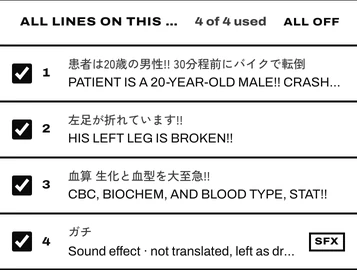
Each line has Use this line. Off, the page shows the original lettering there: nothing is erased, nothing is lettered. All off shows the original page, All on brings the translation back. Free.
Lines you added with Box, read and translate or as a text box can also be deleted: Delete this line, or the Delete key.
Re-translate this page
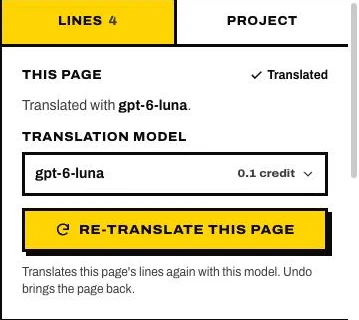
The page's card, above the lines, says which model translated the page. Pick a Translation model and click Re-translate this page: every line on the page is translated again, the ones you edited too, at the model's price a page, asked first. Undo brings the page back. For the whole volume, use Re-translate the volume on the project page.
Read and translate this page again
In the toolbar. The page is read from its image once more and translated: its lines are replaced and your edits to them are lost. 1 credit, asked first. Use it on a page that failed, was skipped, or was read wrong. Undo brings the page back.
Add a term to the glossary
Select a name or a term in a line's source: Add to glossary opens under it. Type the translation, pick Name, Place or Term and the glossary, and click Add. See Glossary.
Touch up
Brush paints over what the cleaning left, on its own layer over the art and under the lettering; Eraser
takes paint away; Colour picks a colour from the page. [ and ] change the brush size. Free, on your
computer, and every stroke can be undone.
Masks
With Mask, drag over anything on the page that should not be translated. Serifu then reads the page as if those areas were blank; the page itself does not change. Masks are used the next time the page is read: Read and translate this page again. Clear all masks removes them.
Pages
Show the page list widens the strip: find a page by number or name, select several (Shift for a range), drag to move them, rename, delete (from the project only, not from your files) or add pages after one. Every change can be undone. Pages you add are translated when you start them.
When something goes wrong
What failed on a page is said at the top of the line panel, with why, what to do and what happened to your credits. While the volume is still translating, what changes a page (re-translating, retouching, turning lines on or off) waits until the run ends or is paused.