Glossary
Keep names and terms translated the same across every volume of a series.
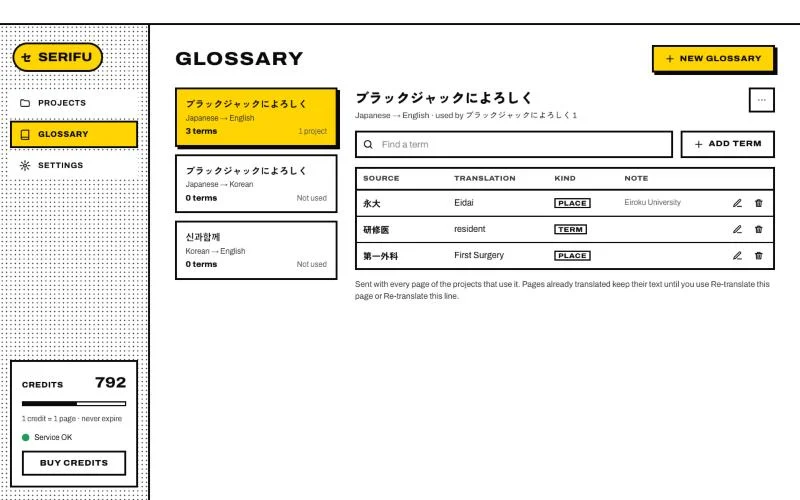
A glossary pins how a name or a term is translated. Serifu sends it with every page of the projects that use it,
so 永大 comes out as Eidai on page 3 and on page 180, in volume 1 and in volume 12.
Make a glossary
Open Glossary in the sidebar and click New glossary. Name it (usually after the series) and pick its two languages: the volume's and the one you translate into. A series you read in English and in Korean has two glossaries. Start from copies another glossary's terms: from the same languages as they are, from another language only the sources, for you to translate.
Add terms
Click Add term and type the source as printed, the translation, and whether it is a name, a place or a term; a note is optional. Terms can be found, edited and deleted in place.
While you check a volume, select a name or a term in a line's source in the editor: Add to glossary adds it without leaving the page.
Use it
Pick the glossary when you make a project, in the project's settings (Glossary), or in Settings › Translation as the default for new projects in its languages. The project's characters go with it, so their names come out right too.
Terms are used for pages translated from then on. Pages already translated keep their text until you use Re-translate this page or Re-translate this line.