Translate your first volume
In the app, from a file on your disk to a translated volume you can read and export, in five steps.
1. Make a project
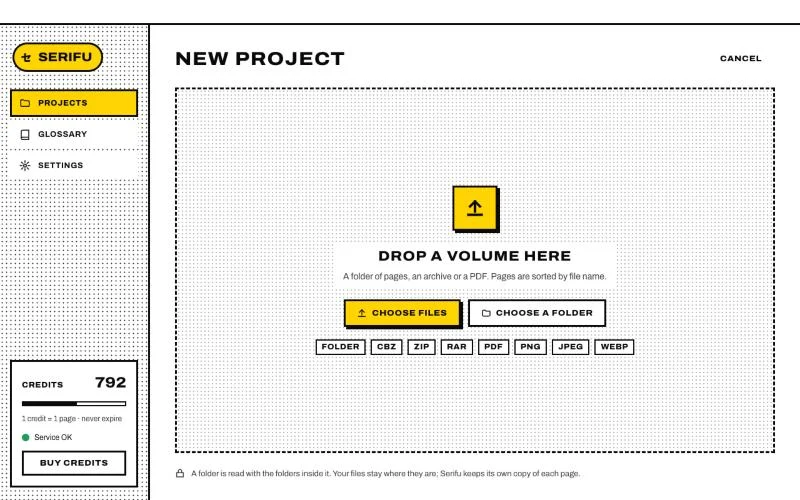
Click New project and drop a folder of pages, a CBZ, ZIP, RAR or PDF, or click Choose files or Choose a folder. Serifu keeps its own copy of each page; your files stay where they are.
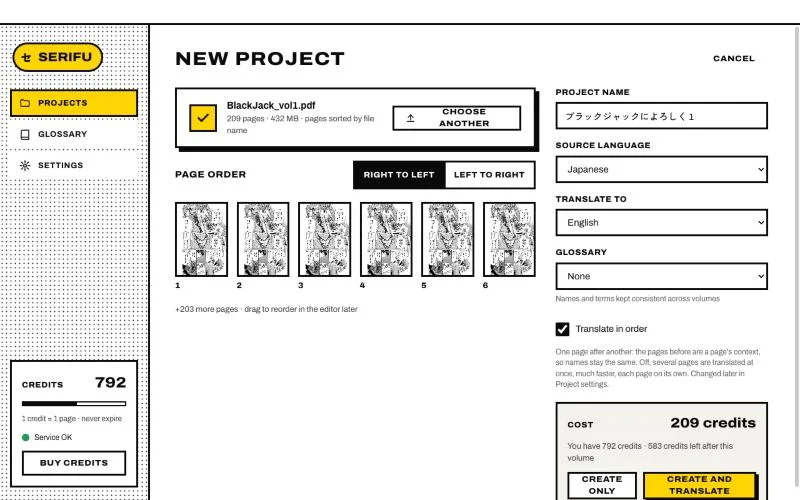
Choose Pages, the default, for a volume of pages, or Webtoon for a strip read top to bottom (one tall image a chapter, or the slices a site cut it into): Serifu cuts it into pages at the blank space between panels, and images of another width, such as a cover, are shown first to remove. For pages, check the Page order (pages are sorted by file name) and the Reading direction: right to left for manga, left to right for most comics and manhwa. Then set the project:
- Source language and Translate to. One volume can later be translated into other languages as well: see Projects and editions.
- Glossary, if the series has one: see Glossary.
- Translate in order, on by default: pages are translated one after another, each with the pages before it, so names stay the same. Off, several pages are translated at once: much faster, but names may drift.
Cost shows 1 credit a page and your balance after the volume. Click Create and translate, or Create only to start later.
Before a new series, it helps to tell Serifu who is who: see Story and characters.
2. Let it translate
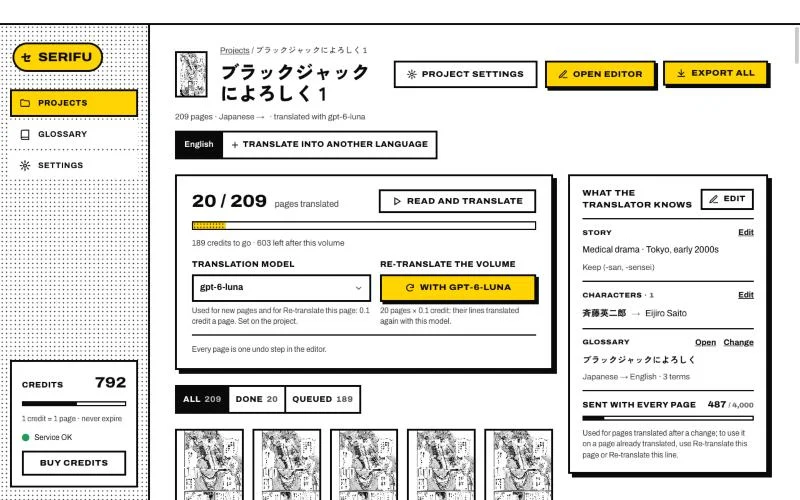
The project page shows the progress and about how long is left. You can open finished pages in the editor while the rest go on. Pause stops after the pages in hand; Resume carries on.
If you run out of credits, the run pauses; buy more and it resumes by itself.
3. Check the project page
When the run ends, the project page sums up what needs you, with Show to see just those pages:
- To retouch: pages with text drawn on the art. The translation is lettered over it; to have the original gone, retouch it.
- Over the allowance, handle by hand: a page with far more text than a page holds. Open it and use Read and translate this page again; Serifu says its price first.
- Failed or Skipped: open the page, it says why.
4. Review in the editor
Click Open editor. Click a line to change its translation, turn it off, or re-translate it; change its lettering; move or resize its text box. See The editor and Lettering.
5. Export
Export all on the project page saves the volume as CBZ, PDF, images or layered PSD. See Export.