Install the app
Download Serifu for macOS or Windows, install it and sign in with your serifu.net account. Updates install from inside the app.
Download
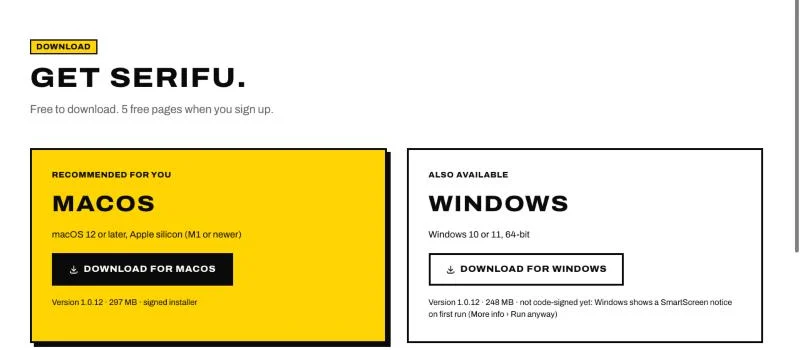
Get the installer from the download page:
- macOS 12 or later, on Apple silicon (M1 or newer): a DMG. Open it and drag Serifu to Applications.
- Windows 10 or 11, 64-bit: an installer. It is not code-signed yet, so the first time Windows shows a SmartScreen notice: choose More info, then Run anyway.
There are no drivers, models or Python to set up.
Sign in
- Open Serifu and click Sign in with browser.
- Your browser opens serifu.net. Sign in, or create an account.
- Check that the code in the browser matches the code in the app, and allow it.

The app now uses your account's credits, the same as the browser. If the browser did not open, click Browser didn't open? Copy the link and open it yourself. The computers linked to your account are listed on serifu.net, where you can remove one.
Fonts
Serifu letters with its own fonts, the same on every computer, each with every character of the language it sets. A few come with the app; the others are downloaded the first time you pick them, then kept.
Updates
Serifu checks for updates when it starts and installs them itself; Settings › Updates shows the version and turns automatic updates off. What changed is on the changelog.
Settings worth a look
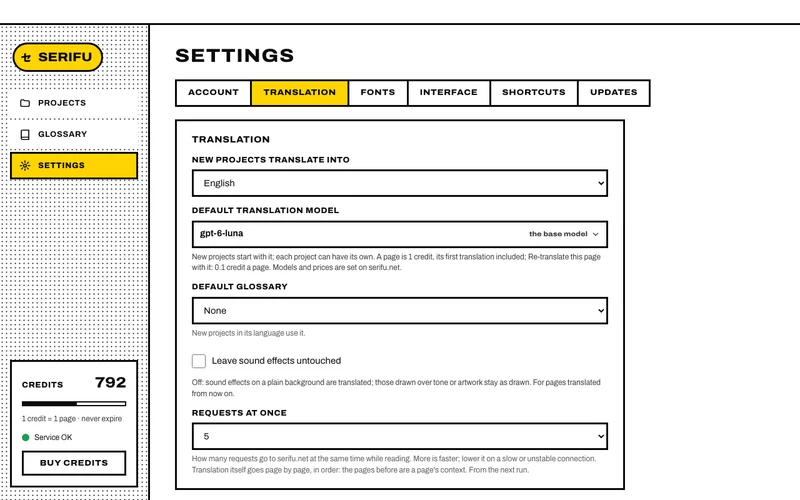
Settings has a tab for each kind of setting:
- Translation: New projects translate into, Default translation model and Default glossary, what new projects start with; Leave sound effects untouched, so sound effects stay as drawn; Requests at once, lower it on a slow or unstable connection.
- Fonts: the fonts of this computer you use, and a default font for a language (see Lettering).
- Interface: the app's language and theme.
- Account, Shortcuts and Updates.
Next: translate your first volume.