Lettering
How a line's translation is set on the page in the app, and every control that changes it: font, size, spacing, direction, alignment, colour and outline.
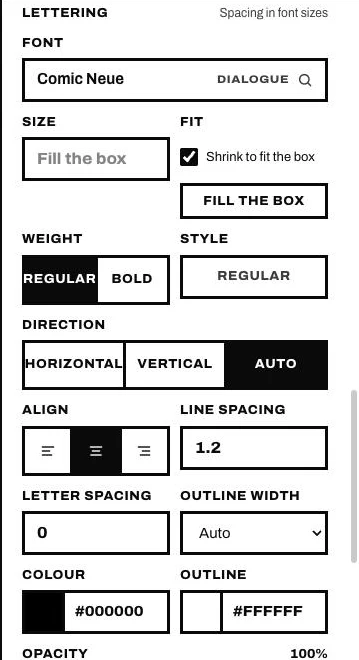
Every translated line is lettered as a text layer you can change. Select a line in the editor: its Lettering is in the panel on the right. With several lines selected, a change sets all of them; a value that differs between them shows —.
Everything that shapes a line is one of these controls. There is nothing hidden.
The text box
The line's text box is outlined in yellow on the page. Drag it to move the text; drag an edge to resize it, and the text scales with it; rotate it from its handle.
Font
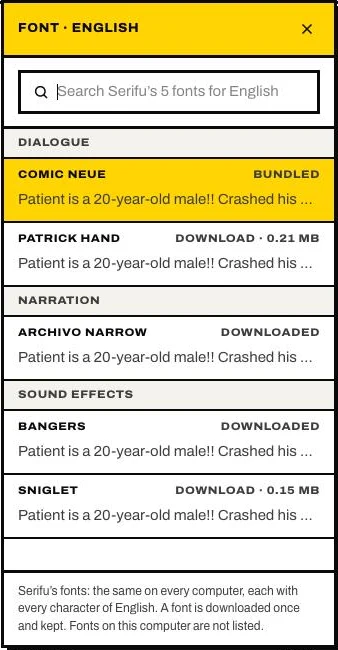
Font opens the font list for the line's language, with a search. Serifu fonts come first, by role (dialogue, narration, sound effects): each has every character of that language and looks the same on every computer. Fonts that come with the app are marked Bundled; the others say their size and are downloaded once, then kept.
Fonts on this computer come next: the fonts installed on your computer that you added in Settings › Fonts, for the languages they have every character of. To add one, open Settings › Fonts, click Add fonts and tick it (install a new font the usual way first). Another computer may not have it: there the line is drawn in the language's Serifu font and the panel says so.
Settings › Fonts › Default font sets a font for a translation language: click Add a language, pick the language, then its font. Every line Serifu letters in that language from then on uses it. A language not listed there is lettered in its Serifu font.
Weight and style picks bold, italic or a weight the font has. Serifu letters in bold. If a font lacks a character, the line says which font draws it instead.
English, Spanish, Portuguese, French, Italian, German and Indonesian are lettered in capitals, as official manga editions in those languages are: Serifu keeps their translations in capitals, yours included when you type or edit one.
Size
Size sets the text size. Shrink to fit the box makes a line that does not fit smaller, down to what fits, and says the size it was set at. Fill the box sets the largest size that fits. With shrinking off, a line too long for its box says so.
Spacing
Line spacing (or Column spacing for vertical text) and Letter spacing, in font sizes.
Direction and alignment
Direction: Horizontal, Vertical, or Auto, which follows how the original was set and says what it chose for this line. Align sets left, centre or right, and top, middle or bottom in the box.
Colour and outline
Colour sets the text colour: pick a shade and hue, or take a colour from the page. Outline sets the outline colour and its width (Auto follows the size, None removes it). Opacity fades the line.
The colours start as the original's: dark text in a white bubble, and on the art the colours the original was drawn in. A white caption on a light background may need an outline you add here.
Undo
Every change is one step: Undo (⌘Z or Ctrl+Z) takes it back.